Quick Guides for Everything You Need
Click any topic below to learn how it works, see real screen examples, and get helpful tips on how to use it.
See Dashboard Guide
Event Types & Dashboard
Create meeting links, pick your video app (Zoom, Teams, Meet), and share your booking page.
Date-Specific Hours
Set custom open hours on specific dates without changing your normal weekly schedule.
Single-Use Links
Create a one-time booking link that automatically turns off after someone books.
Offer Slots in Email
Pick a few open times and paste clickable time buttons straight into an email.
Secret Sharing
Send passwords, private notes, or files safely with self-destruct timers.
Reminders & Automation
Send automatic email reminders and WhatsApp messages before and after meetings.
Scheduling Dashboard Screen
/Index
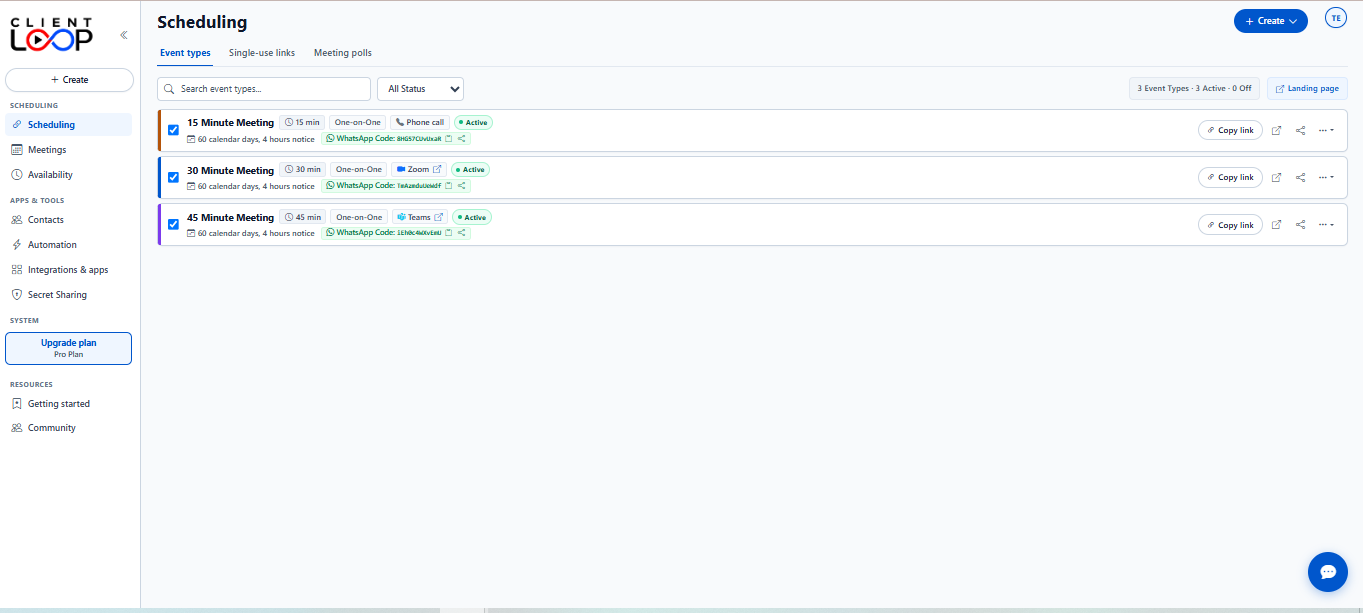
What You See on This Screen
1
Top Brand Header: Shows your company logo, company name, and your profile picture.
2
Left Sidebar: Quick links to jump between Meetings, Availability, Contacts, Automation, and Settings.
3
Top Tabs: Lets you switch between your standard Event types, Single-use links, and Meeting polls.
4
Search & Filter: Type a keyword to quickly find an event or filter by Active / Inactive status.
5
Meeting Cards: Shows the meeting name, length (e.g. 15 min), location (Zoom, Teams, Meet), and your custom hours badge if set.
6
Quick Action Buttons: Hover your mouse over any card to book a meeting, grab email time slots, generate a single-use link, or copy your public link.
How to Use This Screen
1
Create a New Meeting
Click the blue + Create button in the left sidebar or top right corner. A side panel will slide open where you can fill in the meeting name, duration, and details.
2
Edit an Existing Meeting
Click the three dots (...) on any meeting card and select Edit to change the meeting name, duration, or open hours.
3
Share Your Link with Clients
Click Copy link to copy your public page URL, or click the WhatsApp chip to copy your booking code for WhatsApp chats.
Helpful Tip: Move your mouse over any meeting card to reveal quick action buttons. You can test-book a meeting or copy time slots for an email in just one click.
Event Settings Drawer
/Index (Drawer Open)
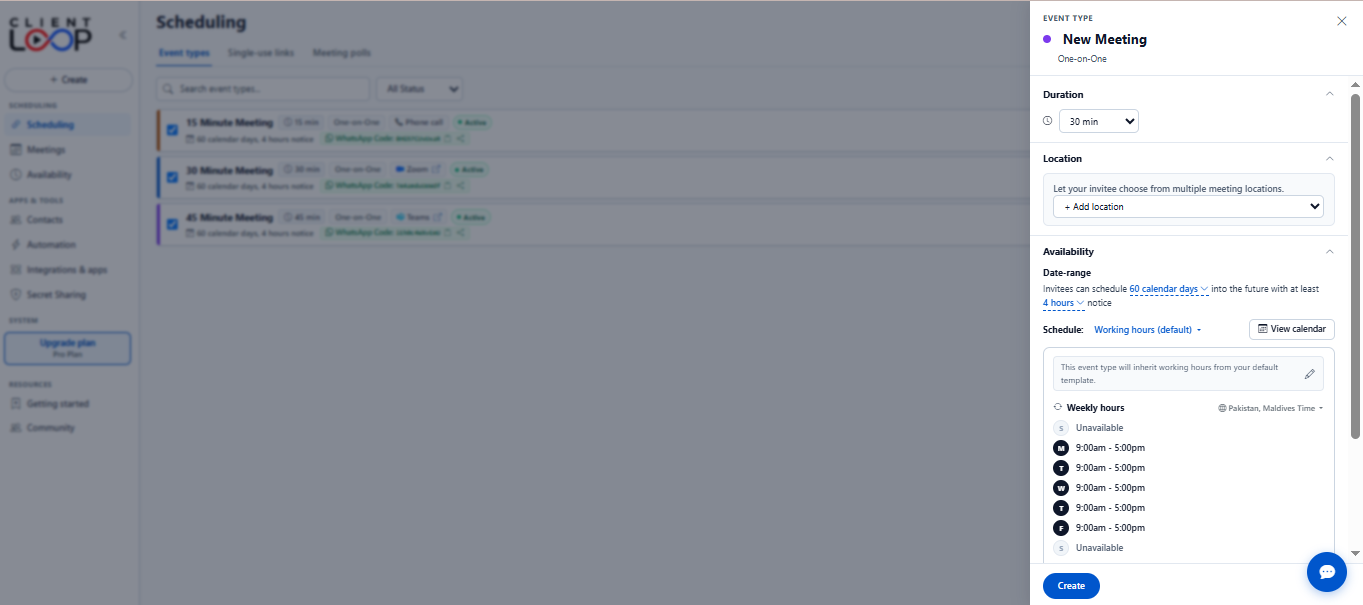
What You Can Set Up Here
Title & Color
Give your meeting a clear name (like "15 Minute Intro Call") and choose a color for its card.
Meeting Length
Select 15 min, 30 min, 45 min, 60 min, or type in your own custom duration in minutes.
Location & Video Call
Choose where to meet: Zoom, Microsoft Teams, Google Meet, Phone Call, or an in-person address.
Booking Notice & Horizon
Set how many days in advance people can book (e.g. 60 days) and minimum notice required (e.g. 4 hours notice).
Saving Your Meeting
When you're finished filling out the details, click the blue Save changes or Create button at the bottom of the drawer. Your link is ready immediately.
Date-Specific Hours in Event Drawer
/Index
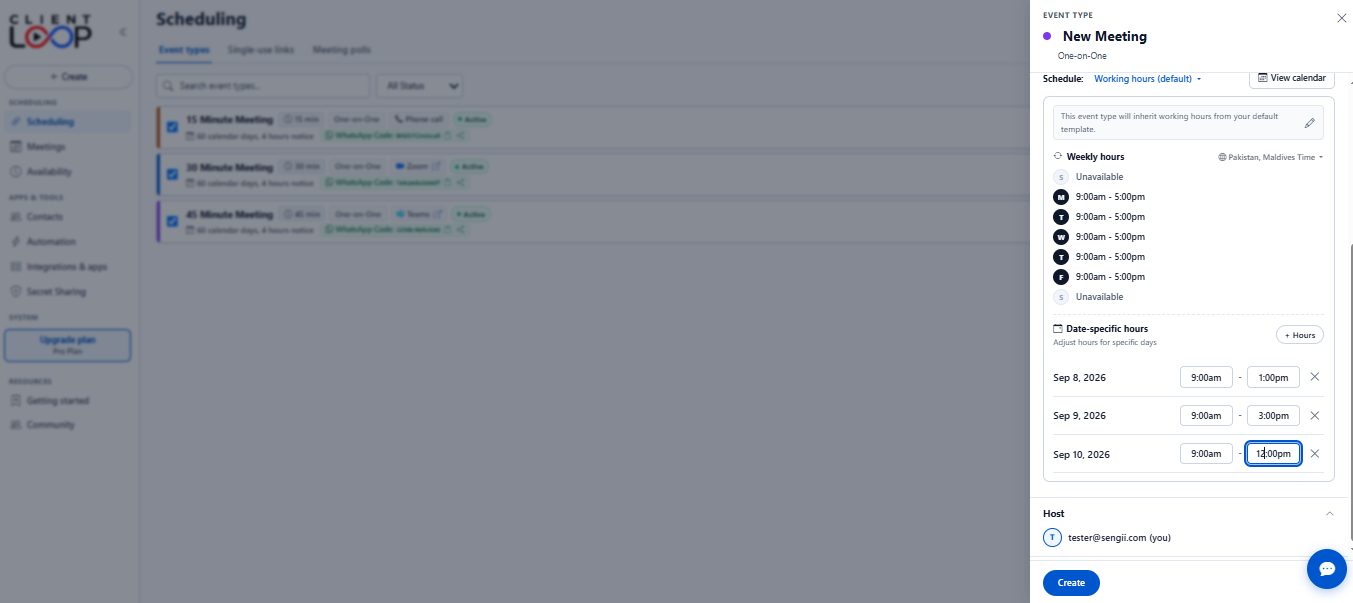
Step-by-Step Instructions
1
Open the Date Picker
Inside the Event Drawer under the Availability section, click the + Hours button next to Date-specific hours.
2
Select Your Dates
Click on one or more dates on the calendar. Selected dates will turn blue. Use the arrows to browse future months.
3
Set Your Custom Start and End Times
Click Apply. Each chosen date will show up in a neat row where you can enter your start and end times (for example: 9:00am - 1:00pm).
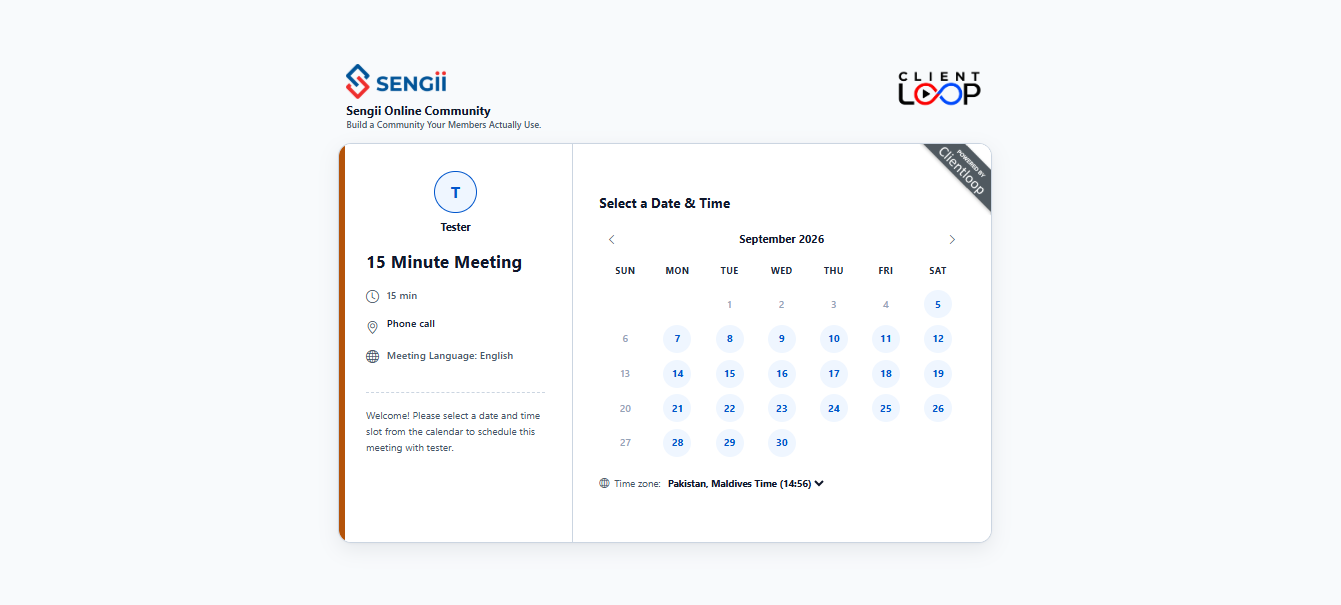
How it works: When a client selects this date on your booking page, ClientLoop will only show time slots within your custom window (e.g., 9:00am to 1:00pm).
Single-Use Link Generator
/Index (Single-Use Drawer)
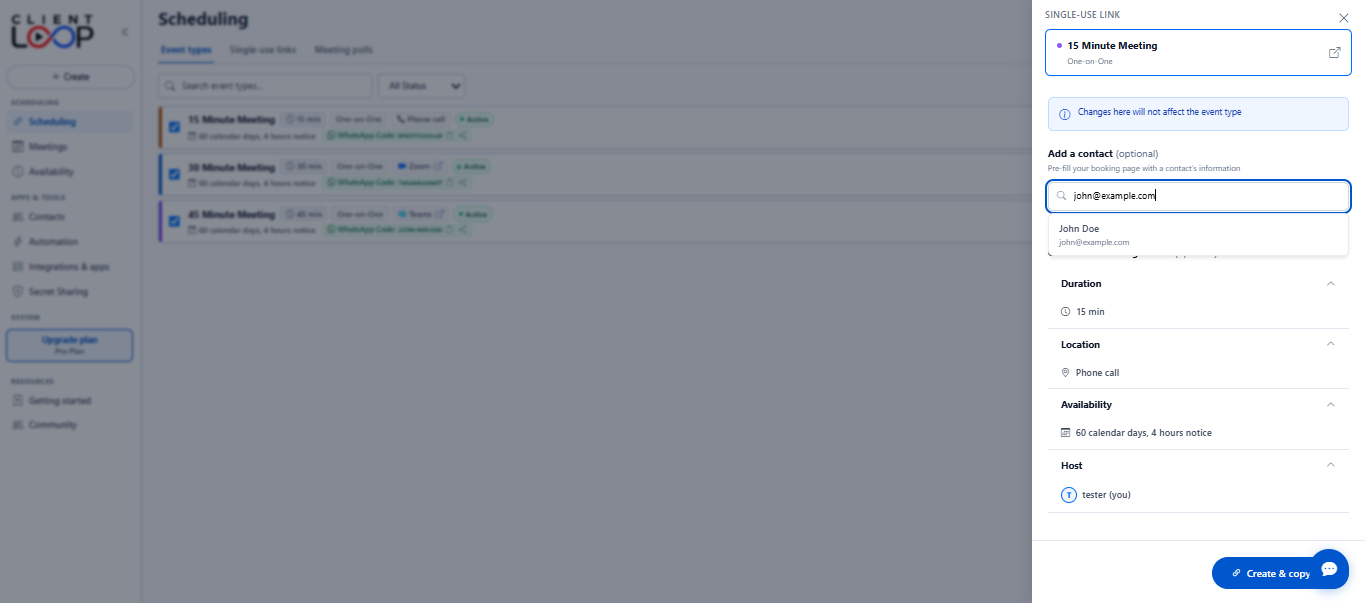
What You Can Customize for This One-Time Link
1
Selected Event Type: Shows the meeting template you're using for this link.
2
Add a Contact (Optional): Type in your client's name and email so they don't have to fill it out when booking.
3
Change Meeting Details (Optional): Adjust duration or location just for this one link without affecting your original meeting settings.
4
Create & Copy: Click the blue Create & copy button. The unique link is instantly copied to your clipboard so you can paste it to your client.
Offer Time Slots in Email Dialog
/Index (Offer Slots Modal)
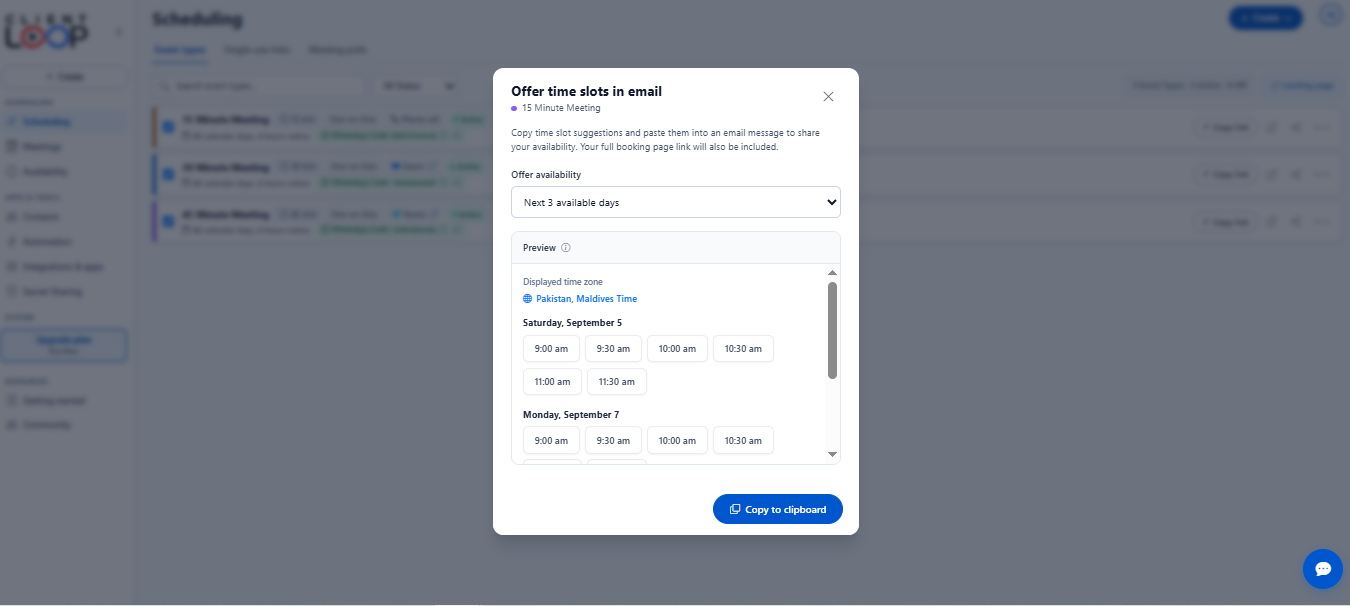
How to Offer Slots in Email
1
Open the Dialog
Hover over any meeting card on your dashboard and click the email icon () Add to email.
2
Pick Days to Offer
Choose how many days to include (e.g. Next 3 available days or Next 5 available days).
3
Copy and Paste
Click Copy to clipboard. Open your email (Gmail, Outlook, etc.) and paste (Ctrl+V) directly into your message.
Inline Booking Dialog
/Index (Inline Booking Modal)
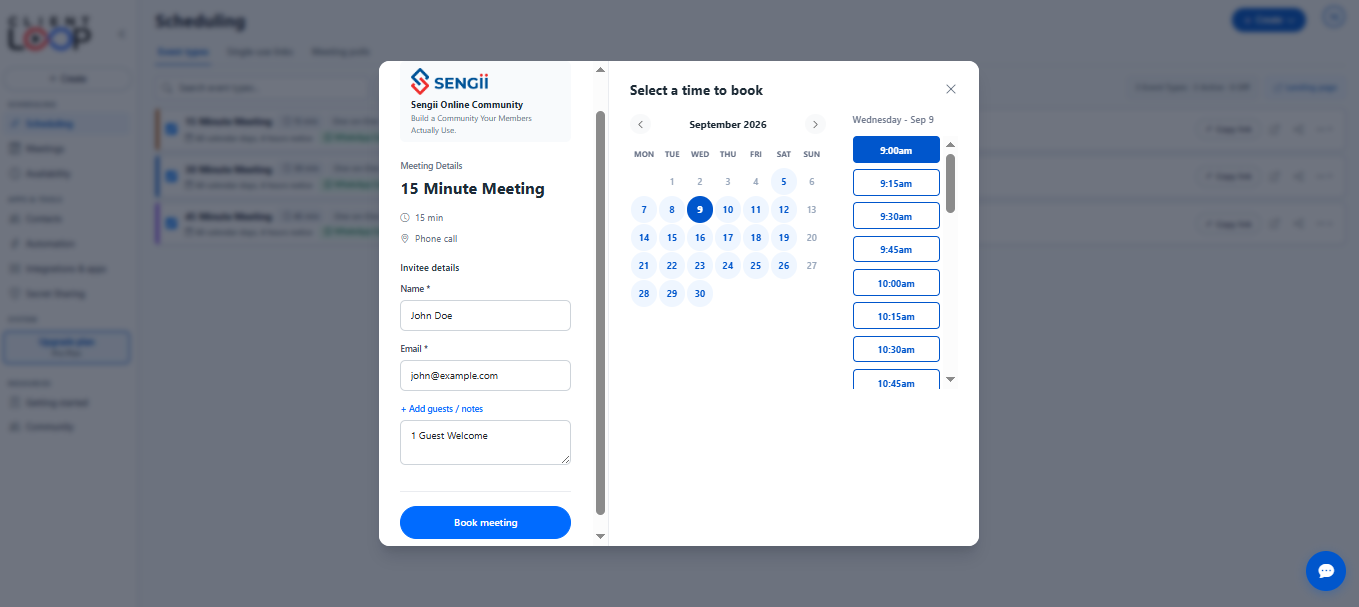
How to Book a Meeting Directly
1
Open the Booking Dialog
Click the Book meeting icon () on any meeting card on your dashboard.
2
Enter Client Details
Type the client's Name and Email in the left panel.
3
Pick Date & Time
Select an available date on the calendar, click a time slot, and hit the blue Book meeting button. Done!
How WhatsApp Booking Works
1
Share Your WhatsApp Code
Every meeting card shows a short WhatsApp code (for example: 36I6phmw70a3). You can copy or share this code with your client.
2
Client Sends the Code
When your client texts this code to your WhatsApp number, the bot replies right away with the next available dates.
3
Client Picks Date & Time
The client replies with the number of their preferred date and time slot.
4
Automatic Booking & Confirmation
The client replies with their Name and Email (e.g. John Doe, john@example.com). The meeting is booked automatically and calendar invitations with the video link are sent to both of you.
Scheduled Meetings Screen
/Meetings
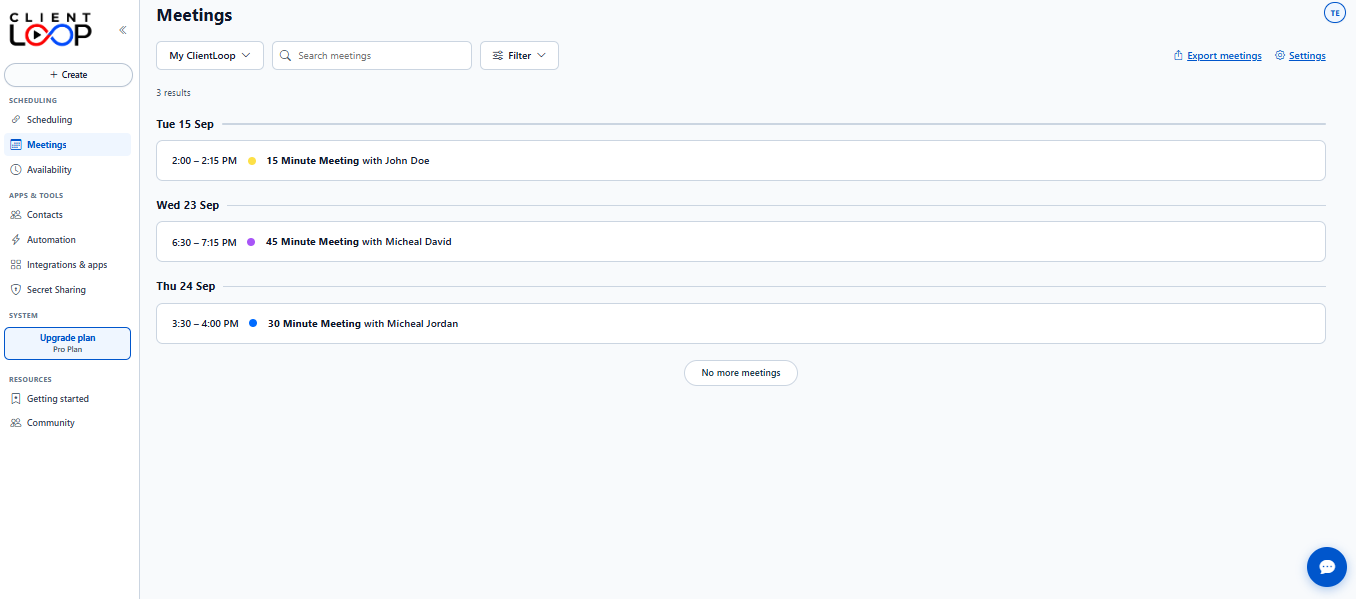
What You See on This Screen
1
Workspace Selector: Switch between your personal meetings (My ClientLoop) and team events.
2
Search Bar: Quickly find a meeting by typing the client's name or email.
3
Filters: Filter meetings by Upcoming, Past, or specific date ranges.
4
Export & Settings: Click Export meetings to download your schedule as a spreadsheet (CSV) or calendar file (ICS).
5
Date Headings: Meetings are grouped clearly by day (e.g. Fri 4 Sep, Mon 7 Sep).
6
Meeting Card: Shows the time, meeting name, and the client's name in an easy-to-read row.
Managing Your Meetings
1
View Meeting Details
Click any meeting card row to view the full details, including the Zoom/Teams video link, invitee notes, and email address.
2
Reschedule or Cancel
Need to move the appointment? Click Reschedule to choose a new time or Cancel to free up your calendar. An automated notice is sent to your client right away.
3
Sync with External Calendars
Click Export meetings to import your scheduled sessions into Google Calendar, Outlook, or Apple Calendar.
Helpful Tip: Whenever you reschedule a meeting from here, ClientLoop automatically updates your calendar and sends your client a new confirmation email with updated video link credentials.
Help Portal Calendars & Hours
Working Hours & Overrides
Weekly Hours & Date-Specific Overrides Panel
/Index (Edit Event Drawer)
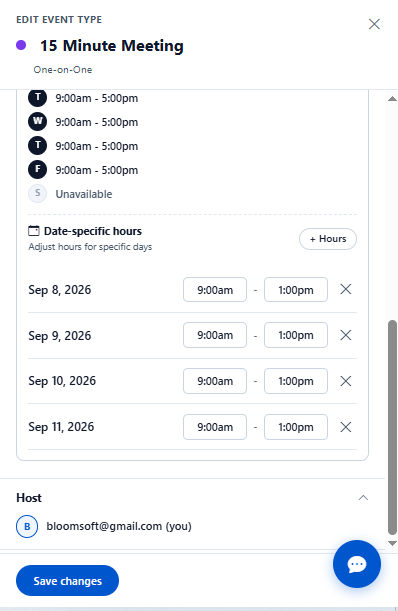
What You See on This Screen
1
Weekly Days Schedule: Shows your standard available times for each day of the week (e.g. Tuesday through Friday 9:00am - 5:00pm) and days you are Unavailable (like Saturday).
2
Date-Specific Hours Section: Lets you override your normal routine for specific dates without having to change your weekly template.
3
"+ Hours" Button: Click this button to open the calendar date picker and choose the exact days you want to customize.
4
Custom Date Rows: Each chosen date (e.g. Sep 8, Sep 9, Sep 10, Sep 11) appears with its own start and end time fields (like 9:00am - 1:00pm).
5
Remove Date Icon (X): Click the cross () next to any custom date row to remove that override and go back to your default weekly hours.
6
Host Details & Save: Displays your host account name and the blue Save changes button to save your hours instantly.
How to Set Up Your Working Hours & Overrides
1
Set Your Regular Weekly Routine
Set your normal daily working window (for example, 9:00am to 5:00pm) and mark your weekends or days off as Unavailable.
2
Add Date Overrides
Under Date-specific hours, click + Hours. Select the dates you want to change (like upcoming holidays or half-days) on the calendar and click Apply.
3
Enter Your Special Hours
Type in the start and end time for each date (for example: 9:00am - 1:00pm for morning-only sessions). When you're ready, click Save changes.
Helpful Tip: Any custom hours you set here will automatically apply to your public booking page, the inline dashboard booking tool, and the WhatsApp booking bot.
Contacts Directory Overview
/Contacts
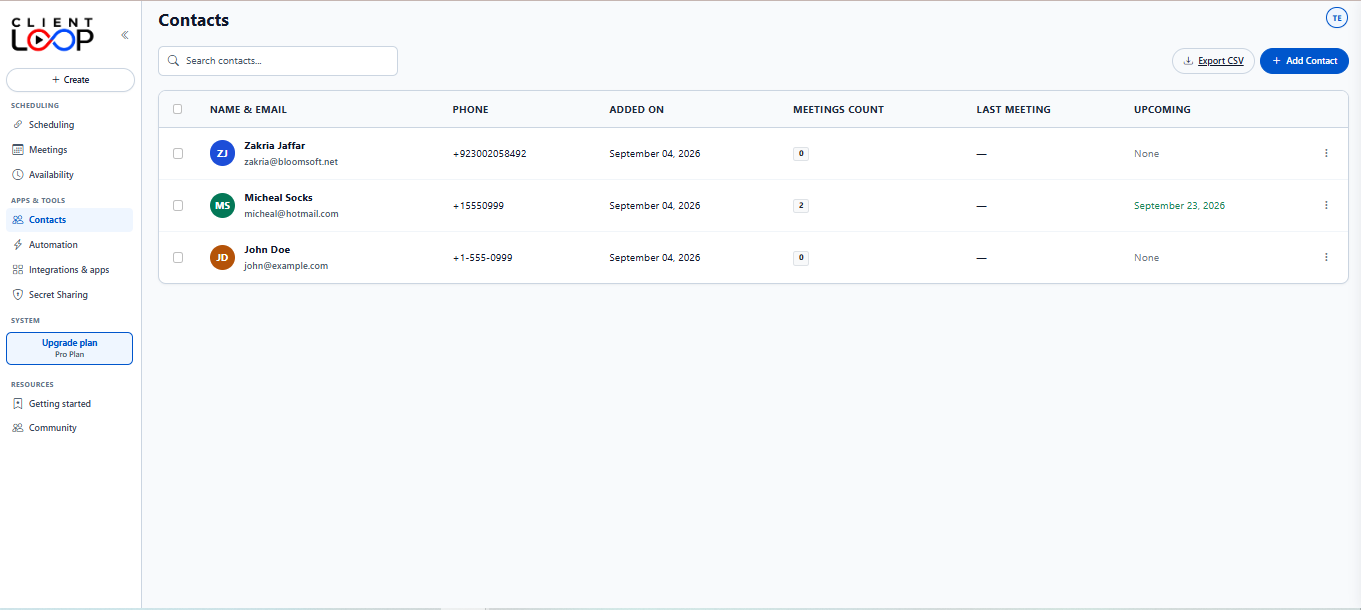
What You See on This Screen
1
Search Contacts Bar: Type any name, email address, or keyword to find a contact in real-time.
2
Export CSV Button: Click Export CSV to download your full contact list as an Excel/CSV spreadsheet.
3
+ Add Contact Button: Click the blue button to open the popup form and add a new contact manually.
4
Contact Details Columns: Shows the contact's initial badge, Full Name, Email address, Phone number, and the Date Added.
5
Meeting History Stats: Tracks how many total meetings they have had (Meetings Count), their Last Meeting, and their next Upcoming appointment date.
6
Three-Dots Action Menu (⋮): Click the menu on any row to edit contact details, book a meeting, or delete the contact.
How to Add a New Contact
You can add new clients or team members anytime by clicking the + Add Contact button:
Add Contact Dialog
/Contacts (Add Contact Modal)
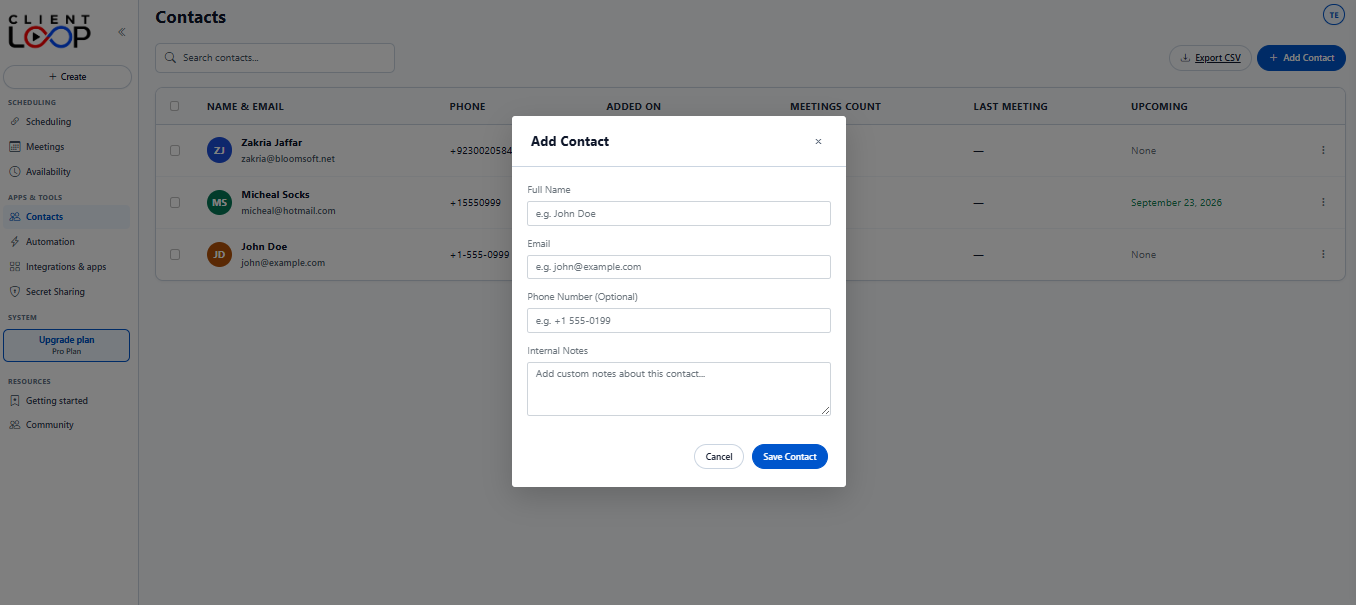
1
Enter Name & Email
Type in their Full Name (e.g. John Doe) and their Email address.
2
Add Phone & Internal Notes (Optional)
Optionally add their phone number and private internal notes (e.g. company name, project details) that only you can see.
3
Save Contact
Click the blue Save Contact button. The contact appears in your directory right away.
How to Export Contacts to CSV
Need your contact list in Excel, Google Sheets, or your CRM? Click the Export CSV button in the top right corner.
Export CSV Download
clientloop_contacts.csv
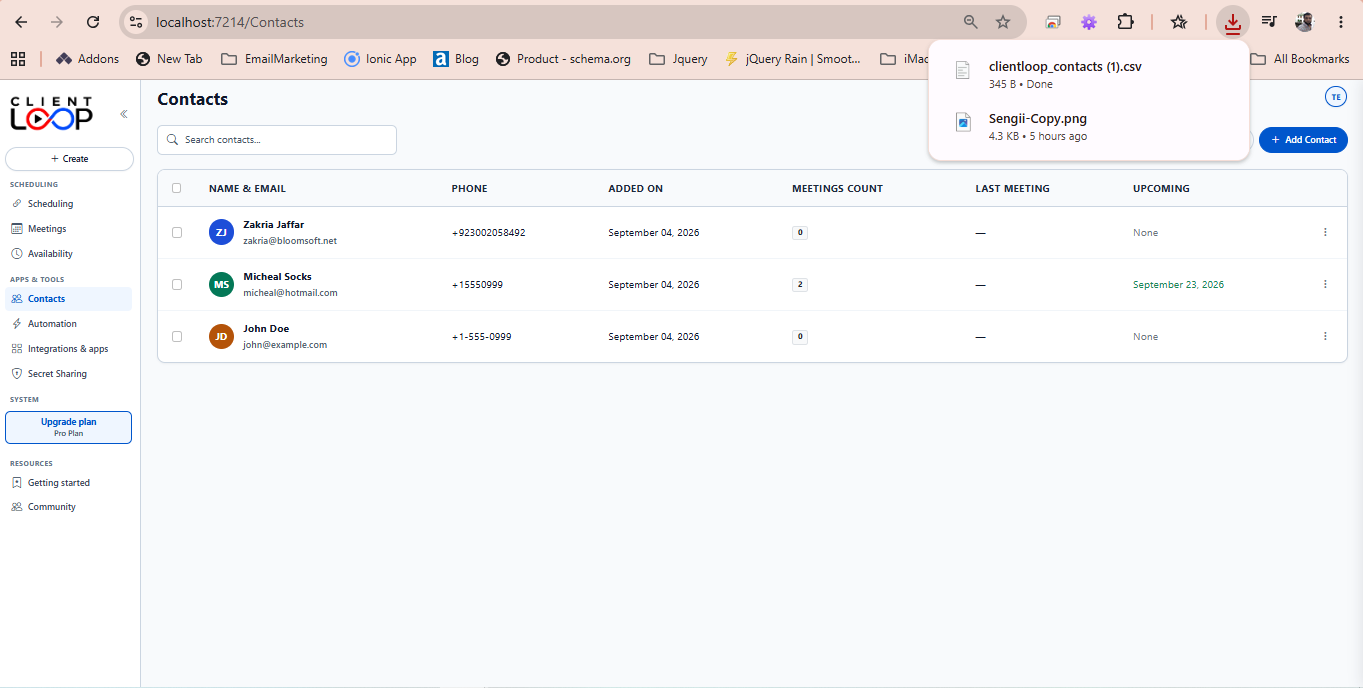
Your browser will instantly download a clean clientloop_contacts.csv file containing all names, emails, phone numbers, and booking records.
Helpful Tip: You don't have to add clients manually before they schedule. Whenever someone books through your public booking page or WhatsApp bot, ClientLoop creates their contact record automatically!
Automation Template Gallery
/Automation
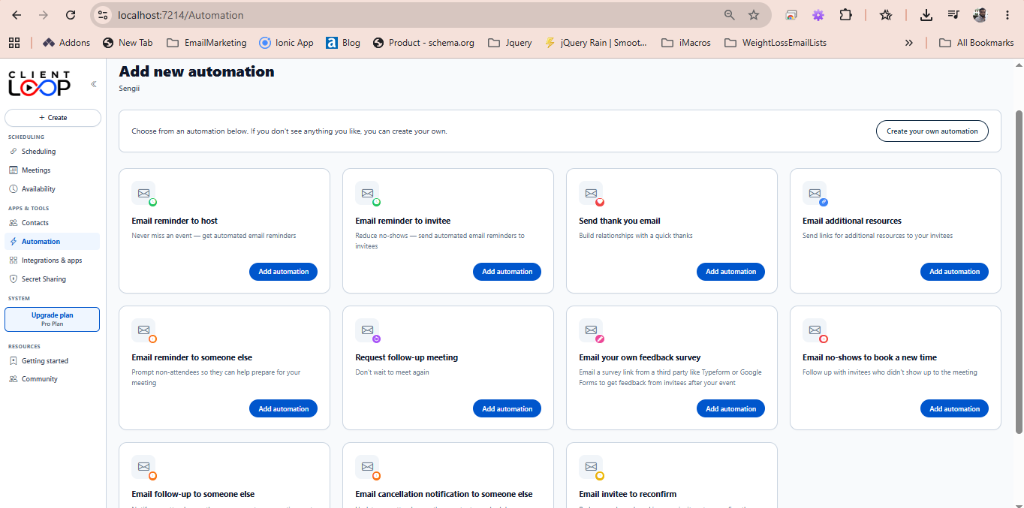
Ready-to-Use Automation Templates
ClientLoop gives you ready-made automation recipes so you can get started in seconds:
Email Reminder to Host
Sends you a reminder before your meeting starts so you never miss an appointment.
Email Reminder to Invitee
Sends your client a friendly reminder 24 hours or 1 hour before the call to reduce no-shows.
Send Thank You Email
Sends a warm thank-you message after the meeting wraps up.
Email Additional Resources
Sends links, onboarding guides, or project files right after booking.
Email Feedback Survey
Sends a survey link (Typeform, Google Forms) to gather feedback from your client.
Email No-Shows to Rebook
Sends a friendly rebooking invite if a client missed their scheduled time.
How to Customize an Automation
Click Add automation on any card or click Create your own automation to open the builder:
Create Automation Builder
/Automation/Create
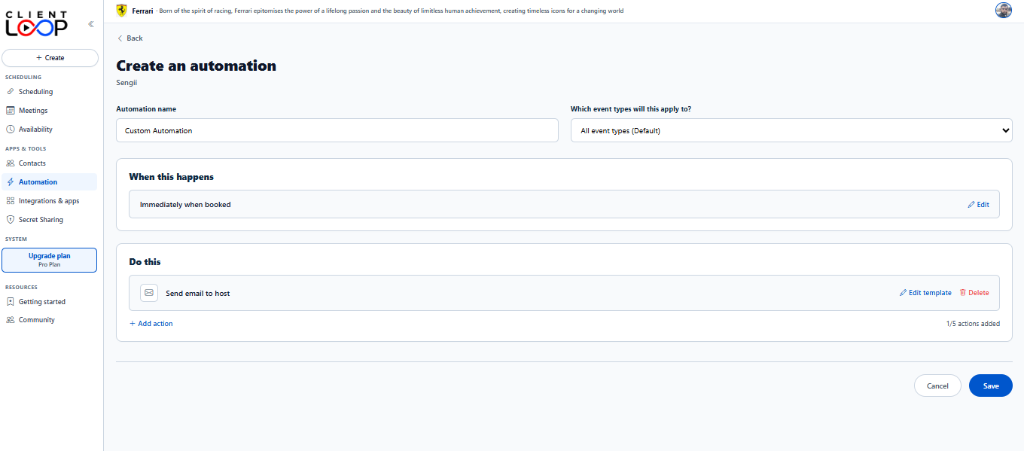
1
Name Your Automation & Pick Event Types
Type in a clear name (e.g. Reminder for 15 Min Calls) and choose if it applies to All event types or a specific meeting.
2
Set "When this happens" (Trigger)
Pick when you want the message sent: Immediately when booked, Before event starts (e.g. 24 hours before), or After event ends.
3
Set "Do this" (Action)
Click Edit template to write your custom email message or WhatsApp text. Click + Add action if you want to send multiple steps.
4
Save Your Automation
Click the blue Save button. Your automation is immediately active for all future bookings!
Helpful Tip: Inside email templates, you can use dynamic tags like {invitee_name}, {event_name}, and {event_time} to personalize every message automatically.
Security Architecture & How It Works
1
AES-256 Encryption: Secret text messages and file attachments are encrypted prior to database storage.
2
One-View Burn After Reading: As soon as the recipient reveals the secret, the secret text is immediately purged permanently from the server database.
3
7-Day Automatic Expiration: Unread active secret links automatically expire and self-destruct after 7 days if left unopened or unrevealed.
4
Immediate File Attachment Purge: File attachments are stored encrypted and deleted from disk/database upon retrieval or after 1 hour from secret text view.
Stage 1: Create a Secret Link (Creator)
Generate a secure one-time secret link by entering your confidential information and optionally attaching a file.
Secret Sharing Dashboard - Create Secret Link
/SecretSharing
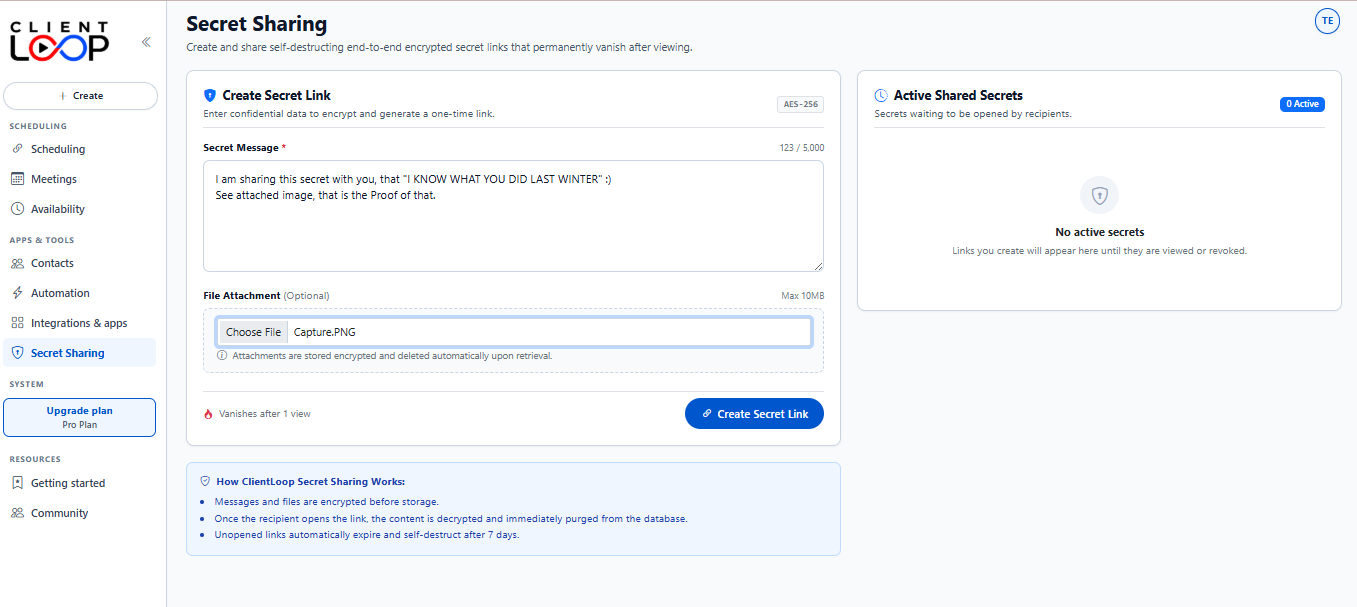
1
Navigate to Secret Sharing
In the left sidebar menu under Apps & Tools, click on Secret Sharing to access the encryption panel.
2
Enter Your Secret Message
Type or paste your confidential text into the Secret Message input area (supports up to 5,000 characters). Note the top-right AES-256 badge confirming end-to-end encryption indicator.
3
Attach an Optional File (Max 10 MB)
Click Choose File under File Attachment (Optional) to select a document, image, or file. Files up to 10 MB are stored encrypted and automatically deleted upon retrieval.
4
Generate the Link
Confirm the Vanishes after 1 view policy indicator at the bottom left, then click the blue Create Secret Link button.
Stage 2: Secret Link Generated & Active Secrets Management (Creator)
Once created, your secret link is live and waiting to be securely dispatched to the intended recipient.
Secret Sharing - Link Generated & Active List
/SecretSharing
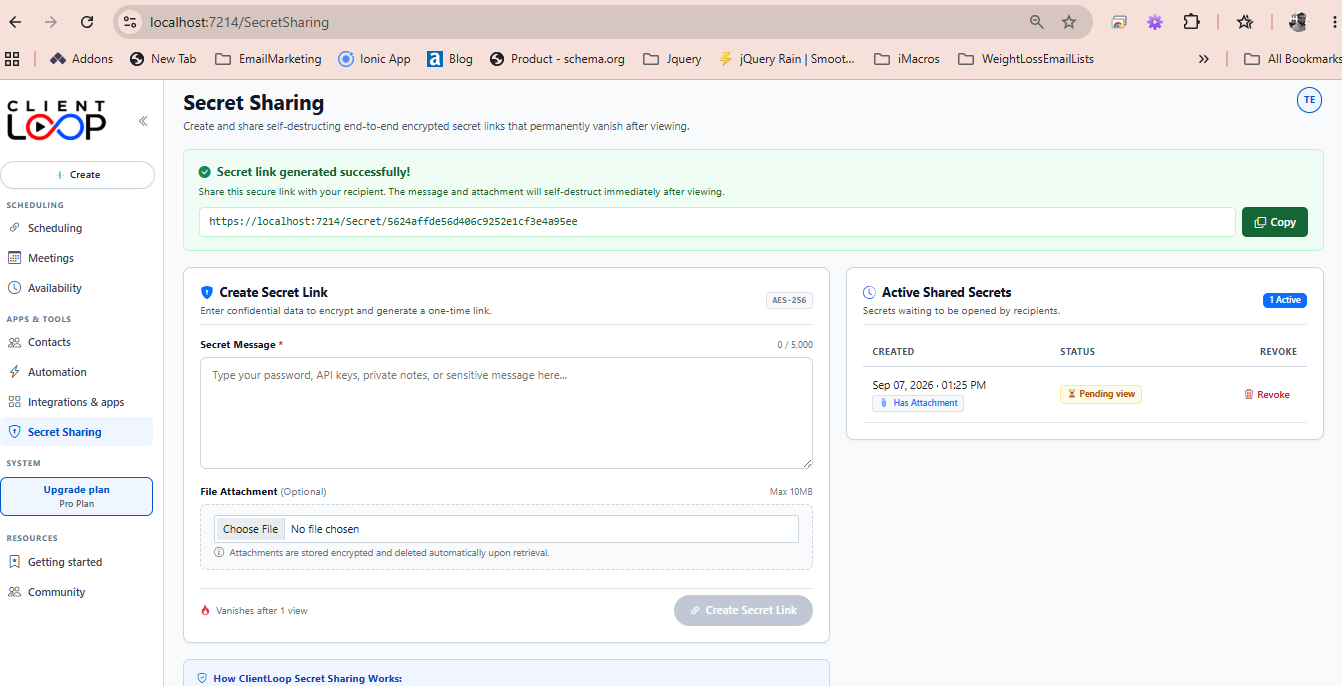
1
Copy & Share the One-Time URL
A green success banner displays the encrypted link (e.g. https://localhost:7214/Secret/5624affde56d406c9252e1cf3e4a95ee). Click the green Copy button and send this link directly to your recipient via your preferred secure channel.
2
Monitor Active Shared Secrets
The right-hand panel Active Shared Secrets updates to track all secrets waiting to be opened. It displays creation timestamp and indicators such as Has Attachment.
3
Pending View Status & Revoke Option
The status badge displays Pending view. If you need to cancel access before it is viewed, click Revoke to instantly destroy the secret link and purge stored data.
Stage 3: Recipient Reveals the Secret (Recipient)
When the recipient opens the link, they are greeted by a clean, branded landing page with explicit warning before decryption.
Shared Secret Portal - Recipient Decryption Landing Page
/Secret/{id}
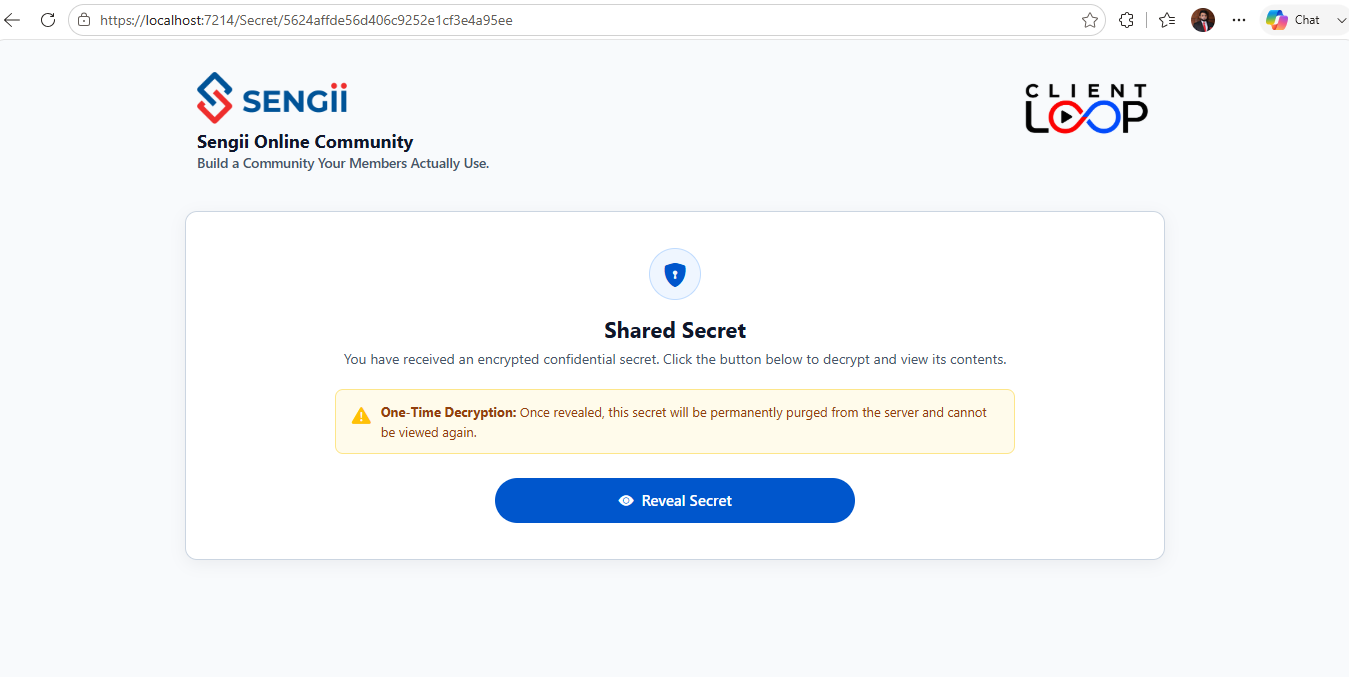
1
Recipient Landing View
The recipient opens the link and sees the host branding logo along with the Shared Secret shield icon and invitation to decrypt.
2
One-Time Decryption Warning
A prominent warning alert notifies the recipient: "One-Time Decryption: Once revealed, this secret will be permanently purged from the server and cannot be viewed again."
3
Click Reveal Secret
The recipient clicks the blue Reveal Secret button to initiate instant decryption and trigger the server self-destruct routine.
Stage 4: Secret Purged & Attachment Retrieved (Recipient)
The secret is decrypted on screen while simultaneously being purged from the server database.
Shared Secret Portal - Decrypted View & Self-Destruct State
/Secret/{id}
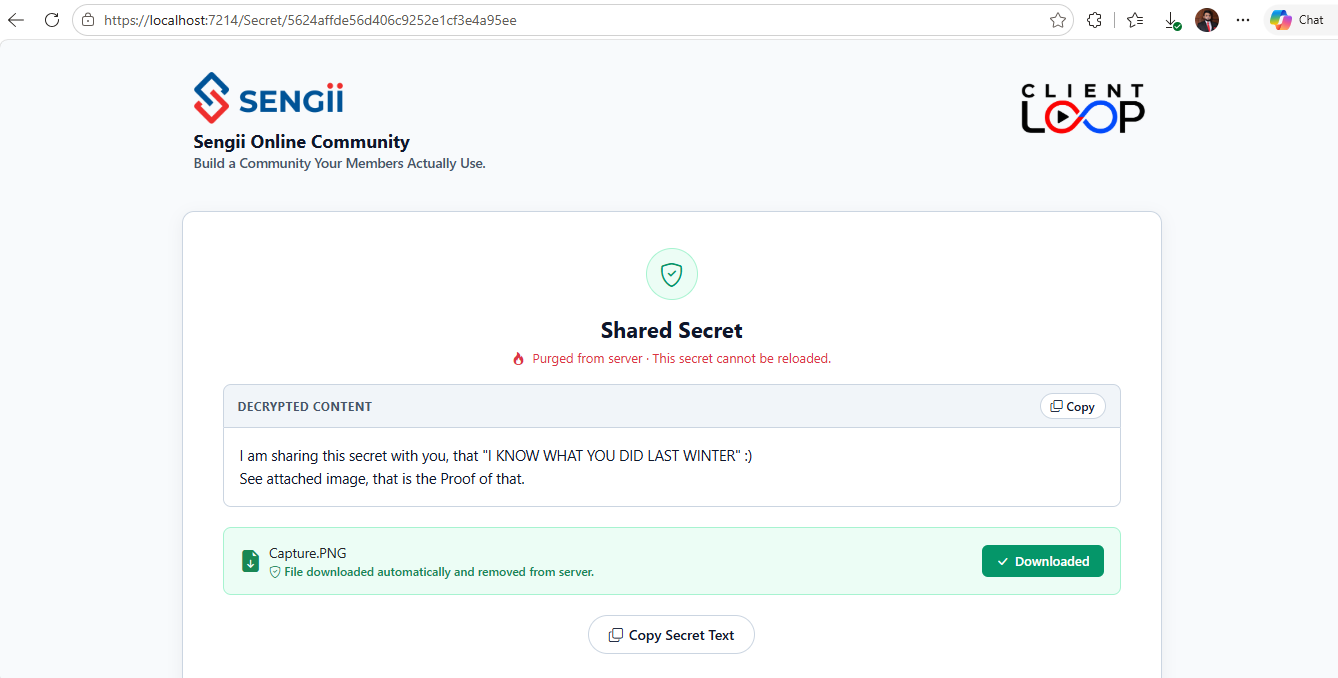
1
Purged From Server Indication
The header displays a flame status badge: Purged from server · This secret cannot be reloaded. Refreshing or reopening the link will display an expired / invalid notice.
2
Copy Decrypted Content
The message text appears inside the Decrypted Content card. Click the Copy icon in the header or the Copy Secret Text button at the bottom to store the text on your clipboard.
3
Attachment Download & Automatic Destruction
If a file was attached (e.g. Capture.PNG), clicking the file card triggers an automatic browser download. Once downloaded, the attachment is permanently removed from the server database.
Security Best Practice: Because links are burn-after-reading, always remind recipients to copy their secret text or save any downloaded files immediately upon revealing, as reloading the browser page will render the link invalid.
Overview
The Integrations & Apps hub (/Integrations) connects ClientLoop with your essential daily software tools. Integrating third-party apps provides key capabilities:
1
Automated Workflows: Automatically trigger meeting notifications and update attendee records across systems.
2
Calendar Synchronization: Sync scheduled ClientLoop meetings to external calendars and check real-time availability to eliminate double-bookings.
3
Dynamic Video Conferencing: Generate unique, secure Zoom, Microsoft Teams, or Google Meet links automatically for newly booked calendar events.
4
Messaging & Chatbot Booking: Connect WhatsApp conversational bots to allow clients to schedule appointments directly over chat.
Accessing Integrations & Available Features
Navigate to Integrations & apps in the ClientLoop left sidebar under the Apps & Tools group to access the integrations hub.
Integrations & Apps – Available Integrations
/Integrations
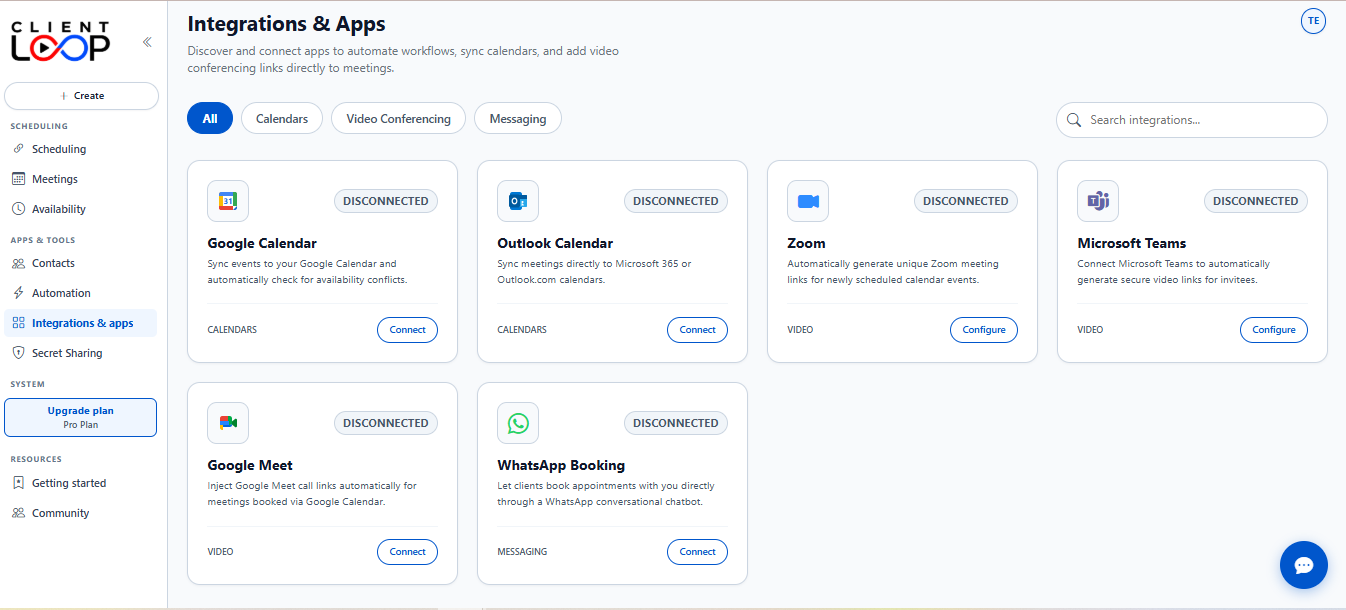
Category Filters & Search
All
Displays all available integration cards in a single responsive grid view.
Calendars
Filters the view to show calendar synchronization services (Google Calendar, Outlook Calendar).
Video Conferencing
Filters the view to show video call providers (Zoom, Microsoft Teams, Google Meet).
Messaging
Filters the view to show customer messaging and chatbot channels (WhatsApp Booking).
Search Integrations Field
Type any app name or keyword in the top-right search box (e.g. Zoom or Google) to instantly filter cards in real-time.
Available Integrations
ClientLoop supports six core integrations out of the box:
Google Calendar
Category: Calendars | Status: Connected / Disconnected
Syncs events directly to your Google Calendar account and automatically checks for availability conflicts before displaying open booking slots.
Connection Action: Click Connect to initiate Google account authorization.
Outlook Calendar
Category: Calendars | Status: Connected / Disconnected
Syncs meetings directly to your Microsoft 365 or Outlook.com personal calendars to prevent overlapping commitments.
Connection Action: Click Connect to authorize Microsoft 365 calendar access.
Zoom
Category: Video Conferencing | Status: Connected / Disconnected
Automatically generates unique Zoom meeting URLs and join links for newly scheduled calendar events.
Connection/Configuration Action: Click Configure (or Connect) to open the Zoom Server-to-Server credential dialog (Account ID, Client ID, Client Secret).
Microsoft Teams
Category: Video Conferencing | Status: Connected / Disconnected
Connects Microsoft Teams to automatically generate secure video links for invitees upon booking.
Connection/Configuration Action: Click Configure (or Connect) to set up Microsoft Azure/Teams app credentials.
Google Meet
Category: Video Conferencing | Status: Connected / Disconnected
Inject Google Meet video call links automatically into calendar invitations for meetings booked via Google Calendar.
Connection Action: Click Connect to link Google Meet meeting link creation.
WhatsApp Booking
Category: Messaging | Status: Connected / Disconnected
Enables clients to book appointments with you directly through a WhatsApp conversational chatbot.
Connection Action: Click Connect to scan the QR code and initiate the WAHA WhatsApp session connection.
Connection Workflow
Connecting an integration in ClientLoop follows a simple 6-step lifecycle:
1
Open Integrations & Apps: Click Integrations & apps in the left sidebar menu.
2
Locate App: Use the category filter tabs or search bar to find your target service.
3
Click Action: Click the Connect or Configure button on the card.
4
Authorize / Enter Credentials: Complete the account sign-in prompt or enter required credentials in the configuration modal.
5
Verify Connection: Ensure the status badge on the card updates to CONNECTED.
6
Use Features: Select the newly connected app in your Event Type settings or workflow rules.
Managing Your Integrations
Searching & Filtering
Type keywords or select category tabs to instantly locate specific apps in your catalog.
Connection Status Badges
Every integration card clearly displays either DISCONNECTED or CONNECTED status at the top-right corner.
Reconfiguring Connections
Click Configure anytime on active services (such as Zoom or Teams) to update API credentials or settings.
Disconnecting Apps
Click Disconnect on any connected integration card to immediately revoke access and disable sync features.
Pro Tip: After connecting Zoom or Teams, make sure to set the Location field in your Event Type settings to automatically attach unique video links to every new booking invitation!
Accessing Profile Settings
Navigate to Account Settings → Profile (/Profile) from the ClientLoop sidebar menu.
General Profile Configuration
The General tab allows you to configure your personal public identity and display options on booking pages.
Account Details – Profile General Settings
/Profile
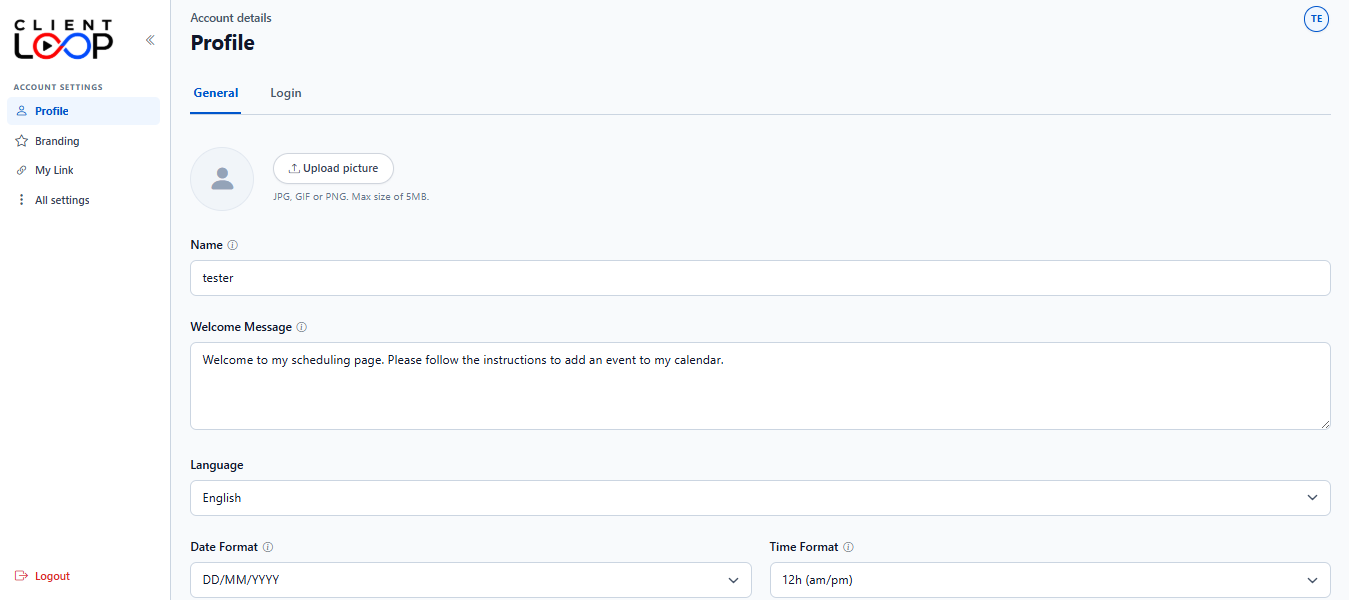
Profile Avatar Picture
Click Upload picture to attach a personal photo. Supported formats are JPG, GIF, or PNG with a maximum file size of 5 MB.
Name Field
Enter your full display name (e.g. tester). This name is shown across all your event scheduling pages and calendar invites.
Welcome Message
Type a custom greeting message (e.g. Welcome to my scheduling page. Please follow the instructions to add an event to my calendar.) displayed at the top of your public booking page.
Language Selection
Select your interface language (e.g. English) from the dropdown selector.
Date Format & Time Format
Choose your preferred date format (e.g. DD/MM/YYYY or MM/DD/YYYY) and time format (e.g. 12h (am/pm) or 24h) to customize calendar picker displays.
Login & Account Security
Switch to the Login tab to view and manage your connected Single Sign-On (SSO) authentication providers.
Account Details – Profile Login & Security Settings
/Profile
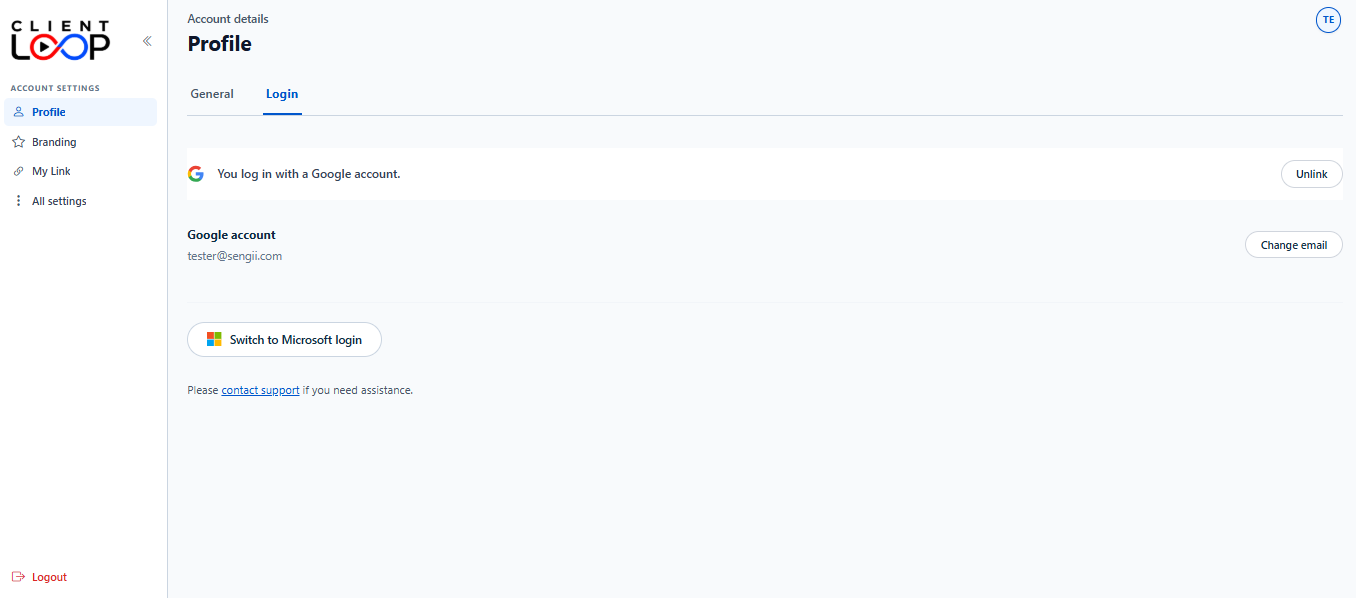
Connected SSO Account
Displays your active login method (e.g. You log in with a Google account) and registered email address (e.g. tester@sengii.com).
Switch Login Provider
Click Switch to Microsoft login or Unlink / Change email to manage connected authentication credentials.
Accessing Branding
To configure your organization's visual brand identity, navigate to Account Settings → Branding (/Branding) from your ClientLoop account sidebar.
Branding Settings
/Branding
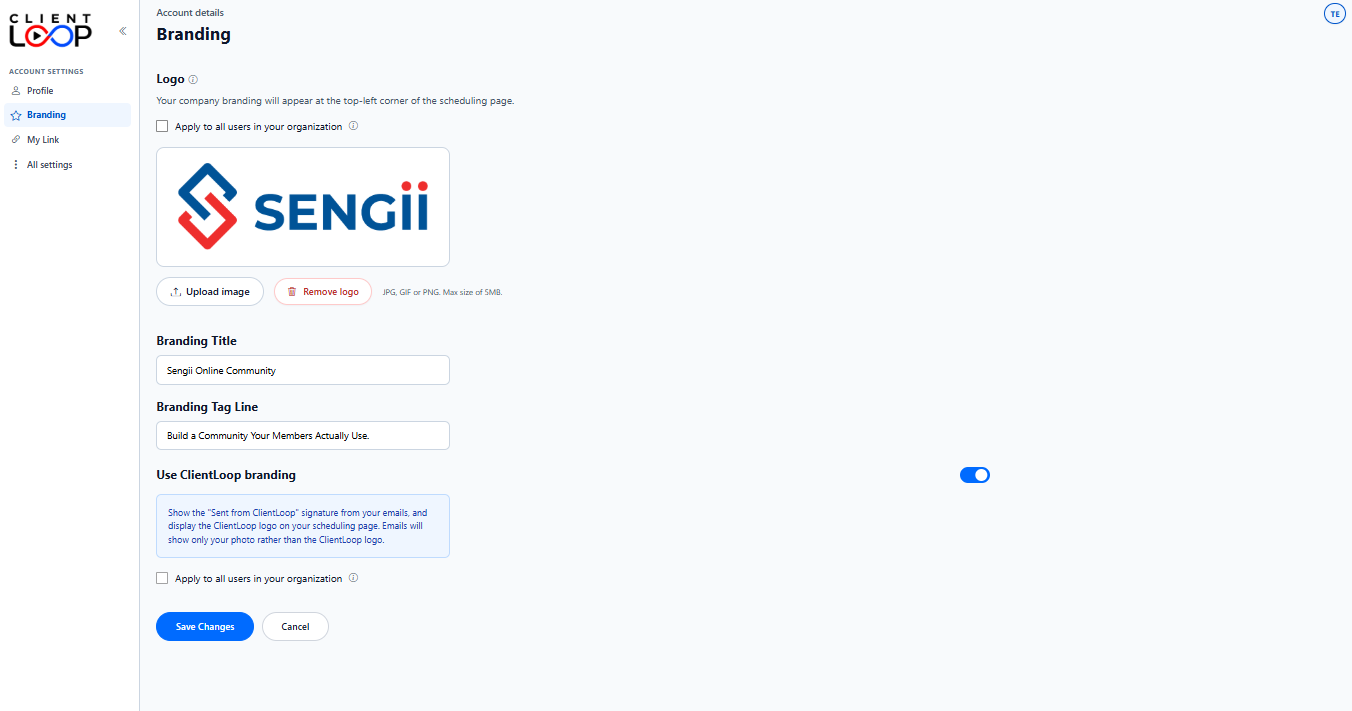
Organization Logo
Your company branding logo will appear at the top-left corner of your public booking pages.
1
Upload Image: Click the Upload image button to select a graphic from your device. Supported formats are JPG, GIF, or PNG with a maximum file size of 5 MB.
2
Remove Logo: Click the red Remove logo button to clear your uploaded graphic and restore the default logo preview box.
3
Apply to All Users: Check Apply to all users in your organization above the logo container to enforce your uploaded logo across all member accounts within your tenant organization.
Branding Title & Tagline
Branding Title
Type your business or organization name (e.g. Sengii Online Community). This title is prominently displayed across header bars on booking and secret sharing pages.
Branding Tag Line
Type a brief descriptive slogan (e.g. Build a Community Your Members Actually Use.) shown directly beneath your branding title.
Use ClientLoop Branding Toggle
Control whether ClientLoop signature badges and logos appear on your client-facing pages and email dispatches.
Setting Behavior: When enabled, the "Sent from ClientLoop" signature is included in outgoing email notifications, and the ClientLoop logo is shown on your scheduling page. When disabled, emails show only your profile photo rather than the ClientLoop logo.
Check the lower Apply to all users in your organization option to standardize this footer branding toggle across all team members in your account.
Saving Changes
1
Click Save Changes
Click the blue Save Changes button at the bottom of the page to apply your new logo, title, tagline, and footer preferences immediately.
2
Cancel Action
Clicking Cancel resets any unsaved form inputs back to your last saved state.
Accessing My Link
Navigate to Account Settings → My Link (/MyLink) in the ClientLoop sidebar menu.
My Link / Scheduling URL Settings
/MyLink
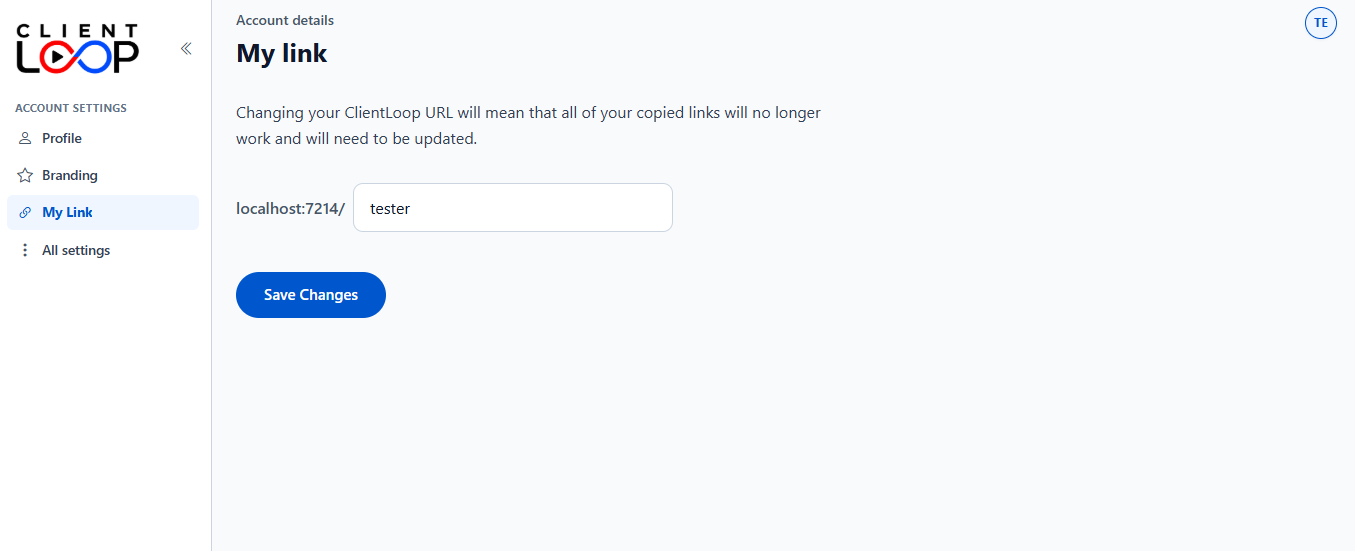
Custom URL Structure & Validation
Your booking page link combines the ClientLoop base domain with your personalized handle (e.g. localhost:7214/tester or clientloop.sengii.com/yourname).
Editable Handle / Slug Field
Type your desired custom handle into the input box. Your handle can contain letters, numbers, hyphens (-), and underscores (_).
Uniqueness & Empty Validation
Links cannot be empty. If you choose a link handle already registered by another user, ClientLoop will display an error notice: "This link is already taken by another user."
Important URL Change Warning
Warning: Changing your ClientLoop URL will mean that all of your previously copied links will no longer work and will need to be updated in your email signatures, websites, or messaging templates.
Saving Changes
1
Click Save Changes
Click the blue Save Changes button to save your new custom URL slug.
2
Confirmation Notice
Upon successful verification, a green alert confirms: "Link updated successfully!" Your booking page is immediately accessible at your new URL.